Every board, word, and setting your child relies on is worth protecting. Here's how SpeakPad backs it up, and how to move it when the time comes.
What's already protected
When you're signed in to iCloud, SpeakPad backs up automatically each time you close caregiver mode and keeps the five most recent backups. It also makes its own safety copy before any risky change, like switching vocabulary sets or restoring a backup, so those can always be undone. You don't need to turn any of this on.
Backing up on demand
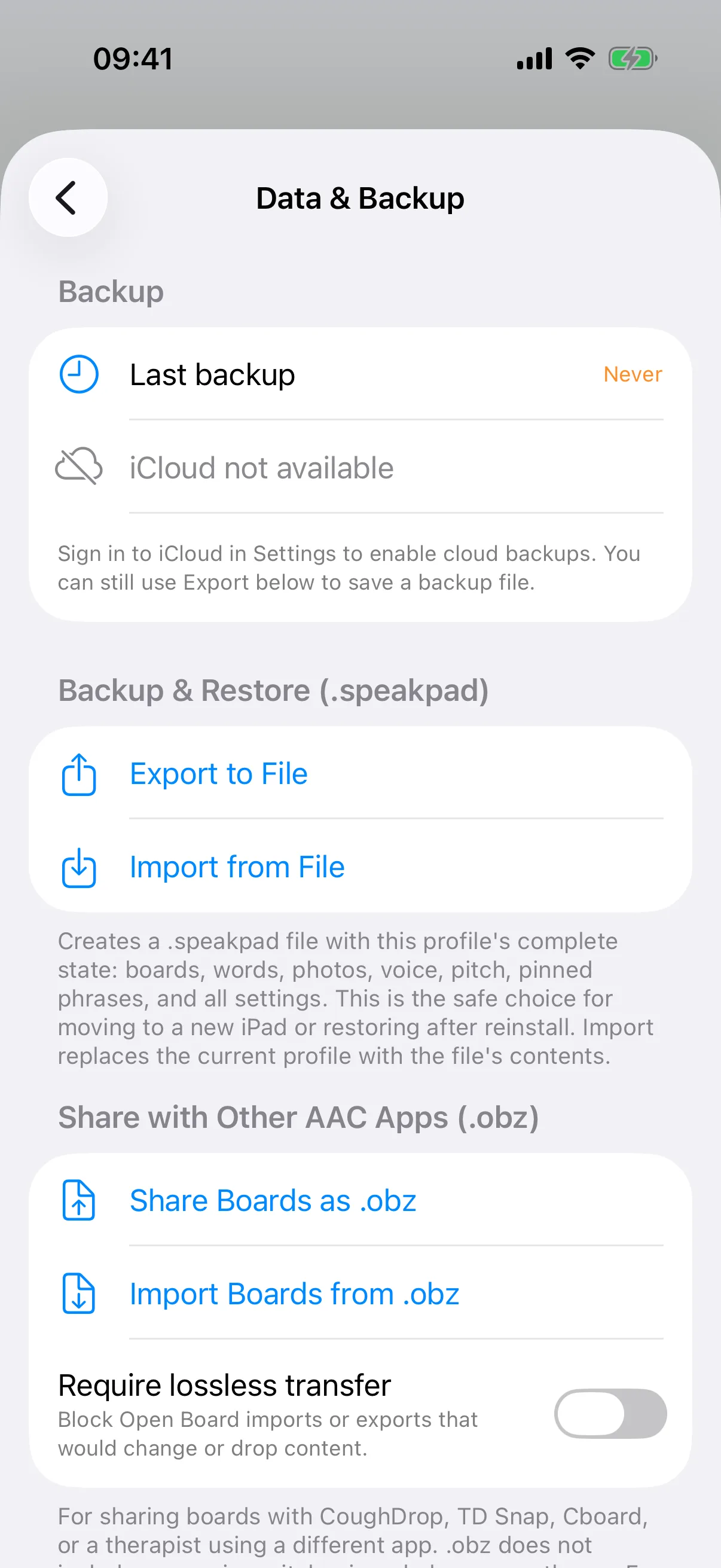
For a backup you control yourself, open Settings → Data & Backup and tap Back Up Now to save to iCloud immediately. To save a file instead, tap Export to File to create a .speakpad file you can store anywhere or send by AirDrop, Files, or email.
Moving to a new device
On the old device, open Data & Backup and either back up to iCloud or export a .speakpad file. On the new device, install SpeakPad. If it finds your iCloud backup, the first setup screen offers Restore From Backup; otherwise, finish the short setup, then open the same Data & Backup page: restore the iCloud backup from the list, or tap Import from File to load the file you saved.
Two devices, one child
If your child uses SpeakPad on more than one device, such as an iPhone and an iPad, SpeakPad Pro keeps them in step when both are signed in to the same iCloud account: turn on Keep Devices in Sync on the same page. When a newer backup arrives from the other device, SpeakPad shows an update prompt; confirm it to apply the change, or turn on Update Automatically When Safe to skip asking whenever this device has no unsaved edits of its own. Without Pro, back up on one device and restore on the other, or send a .speakpad file. Automatic and manual iCloud backups and file transfers remain free.
If something goes wrong
Restoring, switching vocabulary sets, and syncing all make a safety copy first, so any of them can be undone from the backup list. Nothing here can lose your child's current boards without a way back.
Boards Across a Family and Care Team
Yes, with Share With the Team in SpeakPad 3.0.1 or later. In Caregiver Mode, open Settings → Data & Backup and use the share button under Share With the Team. Each person uses their own iCloud account. Starting a share and publishing edits require Pro; accepting an invitation and applying an offered update are free. Changes are published when you leave Caregiver Mode. Recipients choose when to apply them; this is not simultaneous editing. Opening an invitation link asks for the parental gate first. If a colleague's update is waiting, apply it before your own changes are shared. Applying replaces this device's boards and updates or removes the goals, sessions and notes shared earlier; a safety backup lets you undo it. Boards, photos, recordings, goals, sessions and notes are shared, while each device keeps its own settings and raw usage history. iCloud must be available and allowed by your organization.
Ready to customize further?
The Editing Boards guide tours the tools behind the parental gate, from Visual Scenes to printing and Modeling Mode.
Guide: Editing Boards