Everything you can customize sits behind a parental gate, out of reach of small fingers. Here's a tour.
Getting in
Tap the gear icon in the message bar and pass the parental gate, a math problem by default. You can switch to a harder multiplication problem or a 4-digit PIN in Settings → Parental Gate. Passing the gate opens the board editor directly.
The board editor
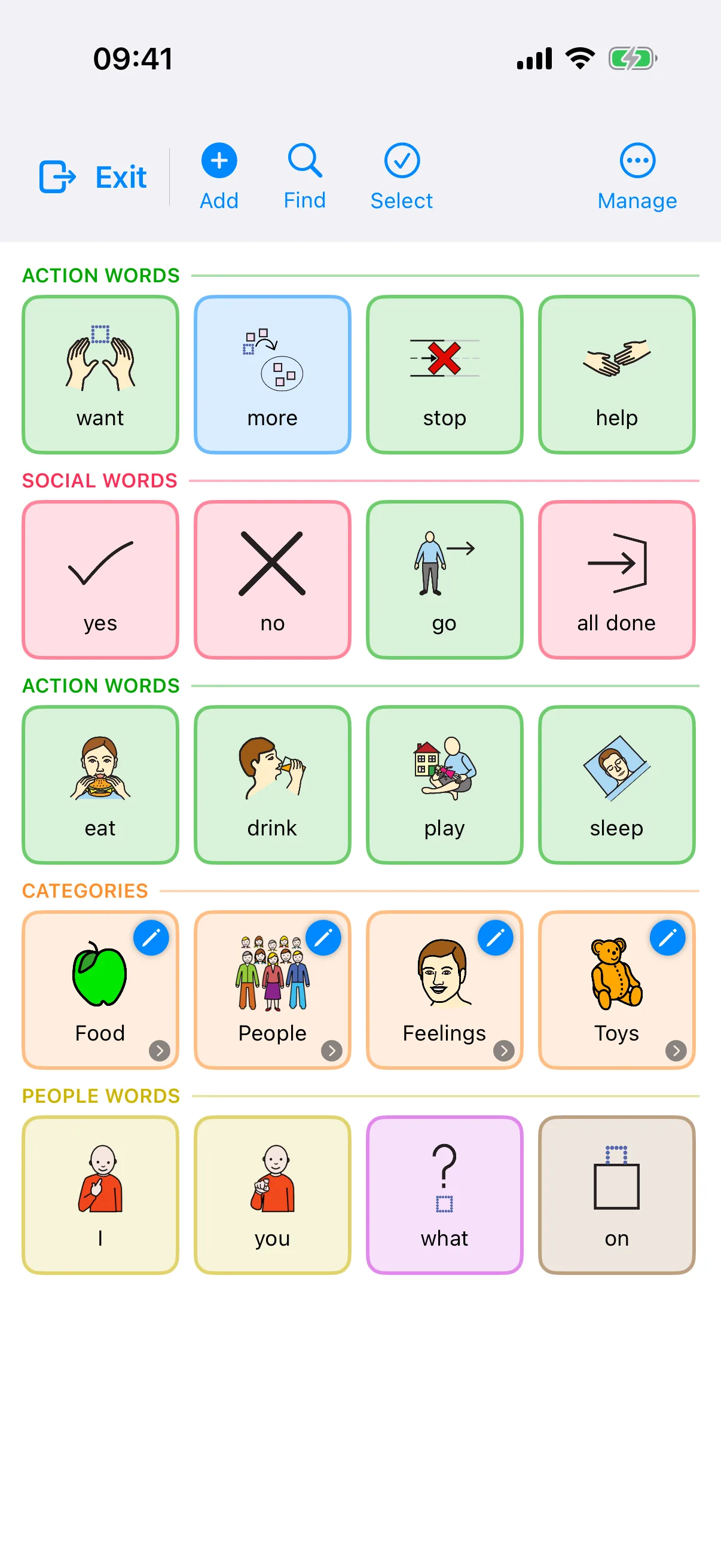
The editing tools sit right on the board itself. Tap any word to edit it: change the label, symbol, color, or add a custom pronunciation. Tap an empty cell to add a new word, or press and hold one to add a word from a photo. The bar along the bottom holds Add, Find (search every board at once), Select (move, hide or remove words) and Model; Settings and More sit at the top right. To move a word, tap Select, choose the word and tap Move, then pick an empty cell to move it there or another word to swap the two. Searching every symbol is free, and so is reusing any symbol already on this profile’s boards. Each profile can assign 30 new built-in symbols free, and Pro lets you assign more.
Adding a new board
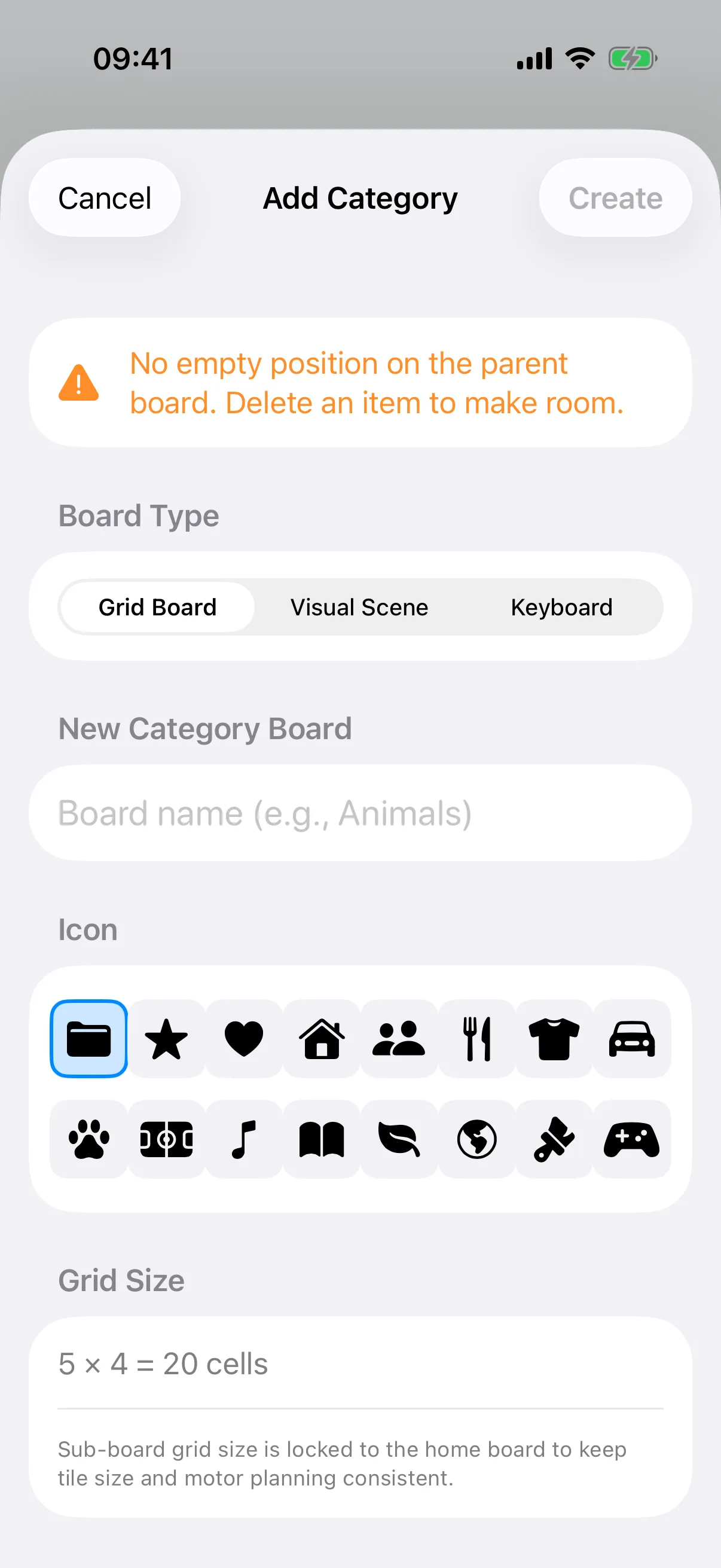
Use Add → New Category to create a themed sub-board, such as one for a specific activity, room, or topic. You can also choose Visual Scene to turn a real photo (a bedroom, playground, kitchen) into a board with tappable hotspots instead of a grid.
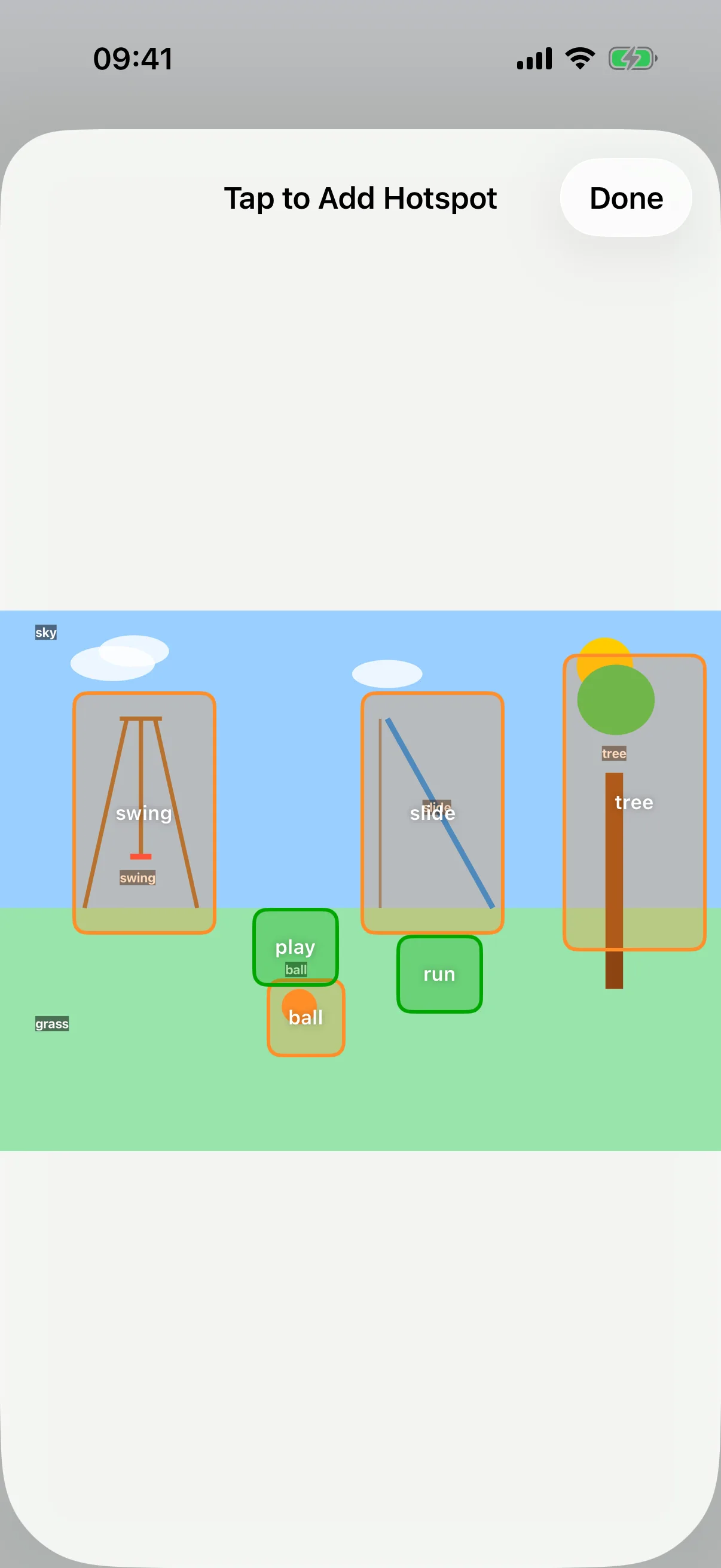
See the Visual Scene Displays guide for how to add hotspots and when a scene works better than a grid.
Settings and More
The Settings and More buttons at the top right hold the rest of the app's tools:
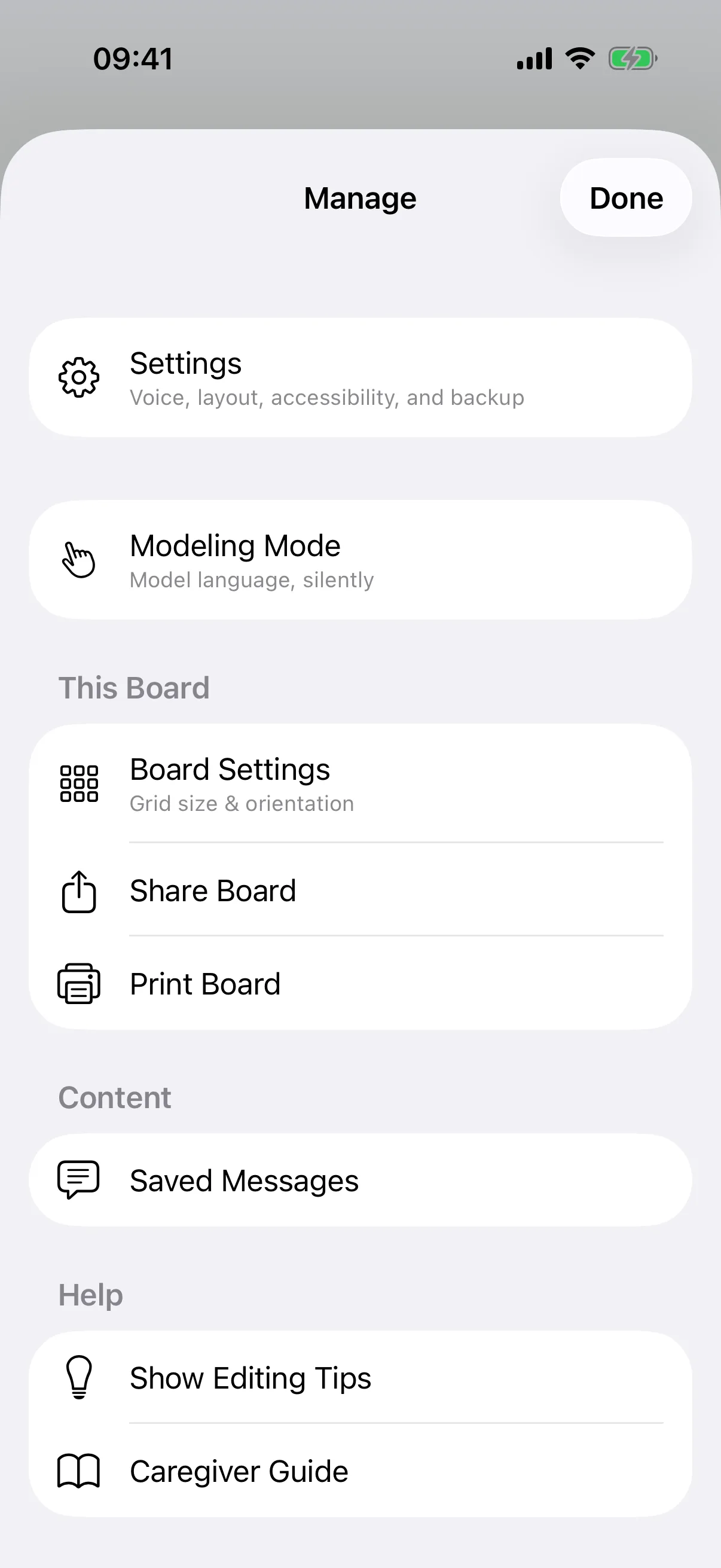
- Settings, for language, voice, boards and vocabulary, accessibility, saved messages, the parental gate, backup, and usage analytics. Settings → Communication is also where you turn on the Attention Button, a bell next to Speak that lets your child call an adult over
- Vocabulary Set, in Settings → Boards & Vocabulary, to add topic boards or change to a different complete set (SpeakPad previews the new home board and backs up your current boards before replacing them). Your first set and one more change per profile are free. Further changes require Pro; your current boards remain usable.
- Share Board, in More, to export the board you're viewing as a
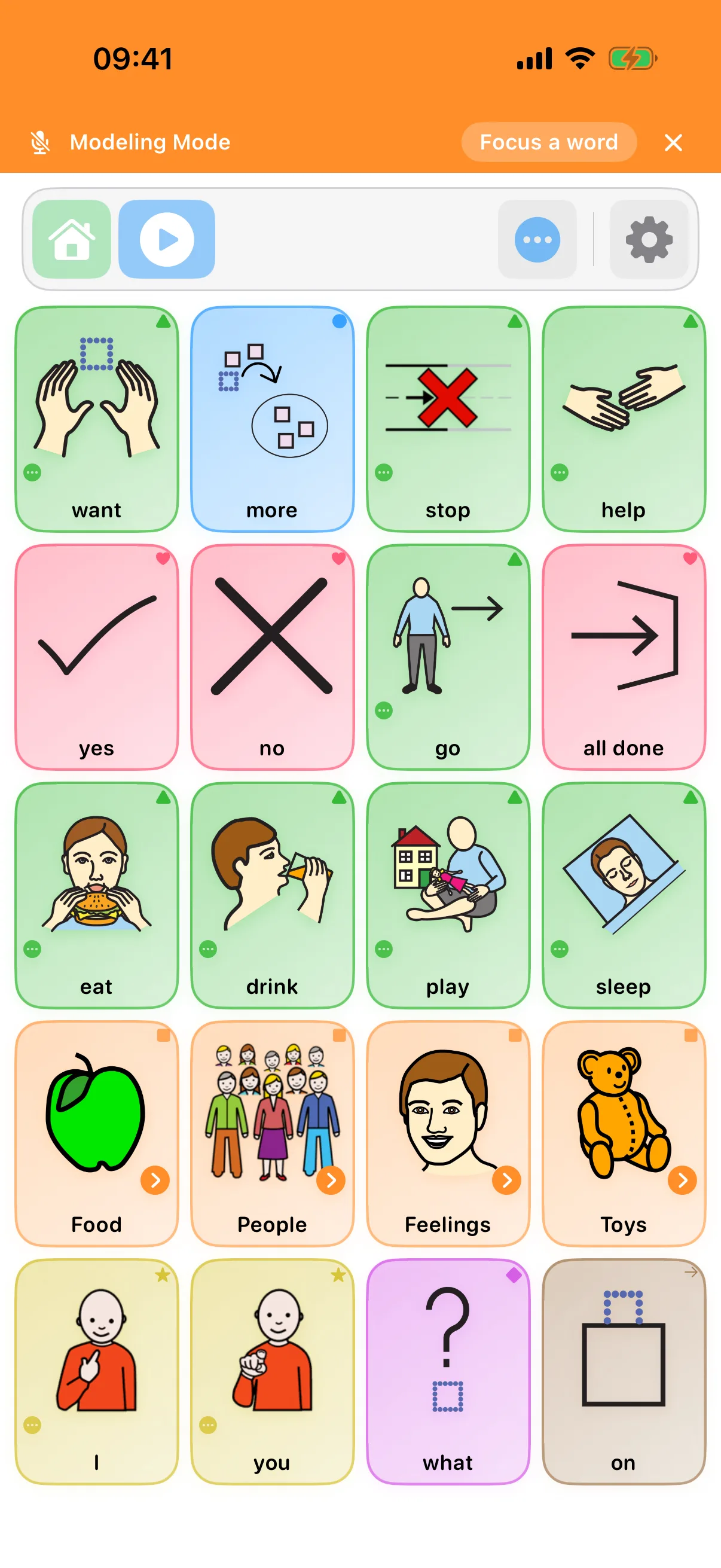
.speakpadfile for a teacher or therapist - Modeling Mode, from the Model button or in More, to show words on the child's board without adding them to their message
- Print Board, in More, to keep a paper copy of any board, and Saved Messages, in Settings, to add, reorder or remove stored phrases
- Switch Profile, at the top of Settings, so each child gets their own boards, voice, and settings. Two profiles are free. Creating a third or later profile requires Pro.
- Symbol Set and Skin tone, in Settings → Boards & Vocabulary, to choose between SpeakPad symbols and the classic symbols and to set the skin tone of the people in them, with a live preview
- This Week, in More, for a seven-day summary of your child's own taps and the target words you are working on
Modeling without pressure
Modeling Mode gives you a separate message to build, so you can show your child how words go together without touching their own message or history. Turn it on with the Model button or from More, tap words the way you'd want your child to, and tap Return to My Message when you're done. Your taps speak if Speak on Tap is on; turn it off in Settings → Communication to model silently.
Anything not covered here, from Switch Scanning to importing boards from another AAC app, is in the full FAQ.
Settling in
New to AAC altogether? Start with the first-week guide for how to introduce the board to your child.
Back to: Your First Week