The dashboard and raw CSV/JSON exports are free. Formatted activity PDF reports require Pro. Printing a communication board stays free. Collecting AAC data by hand, with tally sheets balanced on a clipboard, is nobody's favorite part of therapy. SpeakPad records word use automatically as the child communicates, and turns it into charts and reports you can actually hand to someone.
What Gets Recorded
SpeakPad logs word taps and spoken sentences for each profile. The data never leaves the device: it powers the analytics screens, sentence history, and word prediction, and nothing else. Recording can be switched off entirely, and logs can be cleared at any time, so you stay in charge of what is kept.
Viewing the Analytics
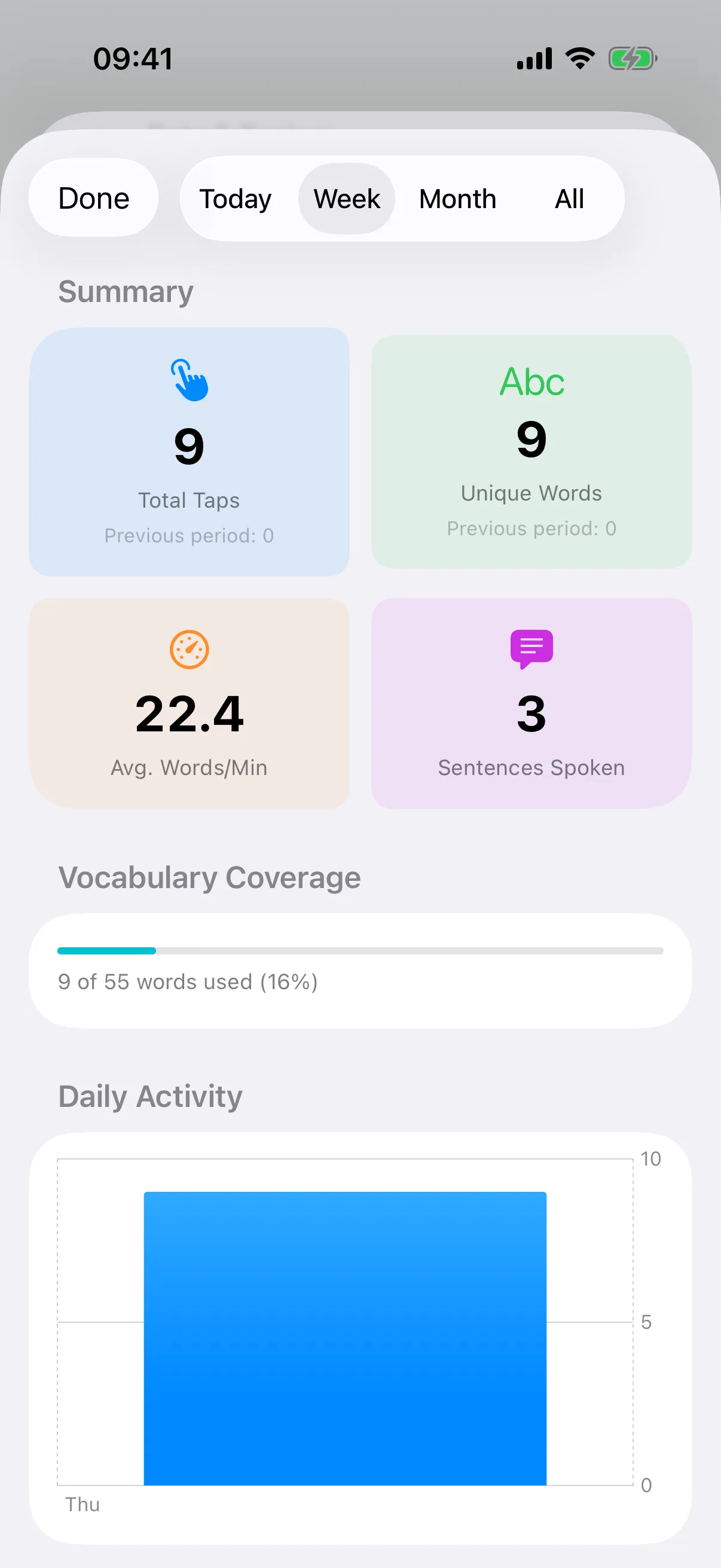
In Caregiver Mode, tap Manage, then Settings, then scroll to Help & About and tap Usage Analytics. You will see which words are used most, daily activity charts, and a review of composed sentences, including phrases the child returns to often. A therapist can spot in seconds what a month of tally sheets used to show: which words have taken off, and which modeled words have not landed yet.
Exporting Data
The dashboard and raw CSV/JSON exports are free. Formatted activity PDF reports require Pro. Printing a communication board stays free. From the analytics screen, scroll to Export Data and choose a format: CSV or JSON for spreadsheets and analysis tools, Plain Text for quick notes, or a PDF Report for SLT.
The SLT Report
The dashboard and raw CSV/JSON exports are free. Formatted activity PDF reports require Pro. Printing a communication board stays free. The PDF report is formatted for sharing with speech-language pathologists: word frequencies, usage trends, and sentence samples in a layout made to be read across a table at an IEP or review meeting. Generate it just before the session and the conversation starts from real data rather than recollection.
Sharing Boards, Not Just Data
Collaboration runs the other way too: any single board can be shared by AirDrop, so a therapist can build a board in a session and send it to the family iPad before they leave the room. For families using a different AAC app elsewhere, boards import and export in the standard Open Board (.obz) format.
One iPad, Several Children?
Analytics are tracked per profile, so each child on a shared therapy iPad gets their own data and their own reports.
Profiles Guide