Two profiles are free. Creating a third or later profile requires Pro. Existing profiles remain accessible if Pro ends. Therapists, classrooms, and families with more than one AAC user often share a single iPad. SpeakPad handles this with profiles: each child gets their own complete setup, and switching between them takes a few taps.
What a Profile Contains
Everything that makes the app one child's: their boards, custom words and photos, voice, speed and pitch, pinned phrases, settings, and usage data. Changing a board or clearing data in one profile never touches another, so a whole caseload can live safely side by side.
Creating a Profile
Two profiles are free. Creating a third or later profile requires Pro. Existing profiles remain accessible if Pro ends. In Caregiver Mode, tap Manage, then Settings, then Switch or Manage Profiles, and choose Create New Profile. Each profile gets a name and an optional photo, which makes handing the right setup to the right child obvious at a glance.
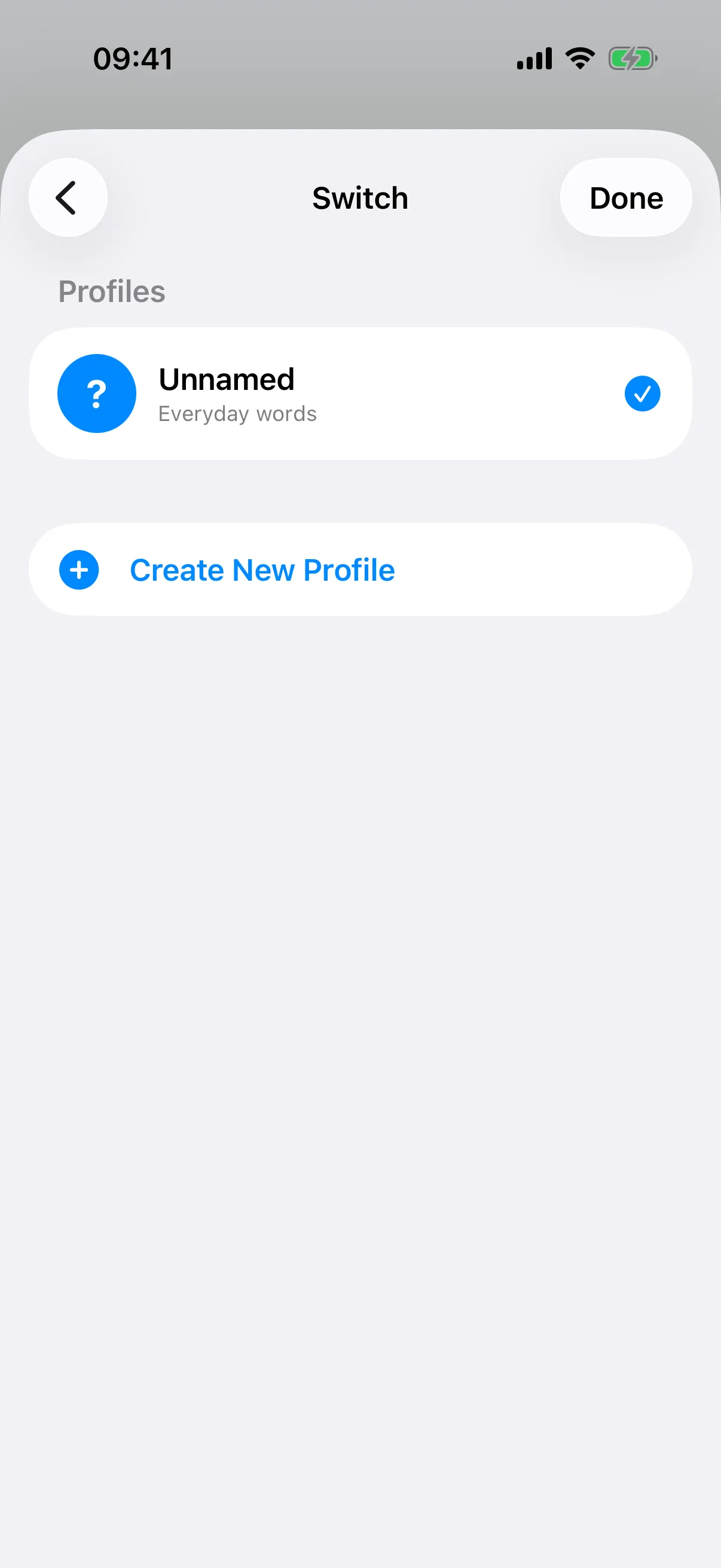
Switching During a Session
You do not need to dig through settings between clients: tap the More (⋯) menu in the caregiver toolbar and choose Switch Profile. The switch is caregiver-gated, so children cannot wander into each other's boards.
Backing Up Each Child Separately
Backups are per profile: exporting creates a .speakpad file with that child's complete state and nothing else. For therapists this is the handoff mechanism, since a board set built on the clinic iPad can be exported and restored onto the family's own device, giving them everything at home. See the backups guide for the full flow.
Resetting Between Clients
When a child leaves your caseload, you can reset their profile to defaults (the profile stays, the data goes) or delete the profile entirely. Export a backup first if there is any chance the family will want their boards later.
Data for Every Child
Each profile records its own usage analytics, so progress reports stay separate too.
Usage Reports Guide