A useful word added in therapy should be available when the child needs it at home or school. That takes an agreed handover process as well as a way to transfer boards. Familiar words should remain easy to find while each setting adds relevant people, activities and topics.
SpeakPad offers three routes. Choose according to who owns the devices, which Apple Accounts they use and what the organization permits.
Choose how to move the boards
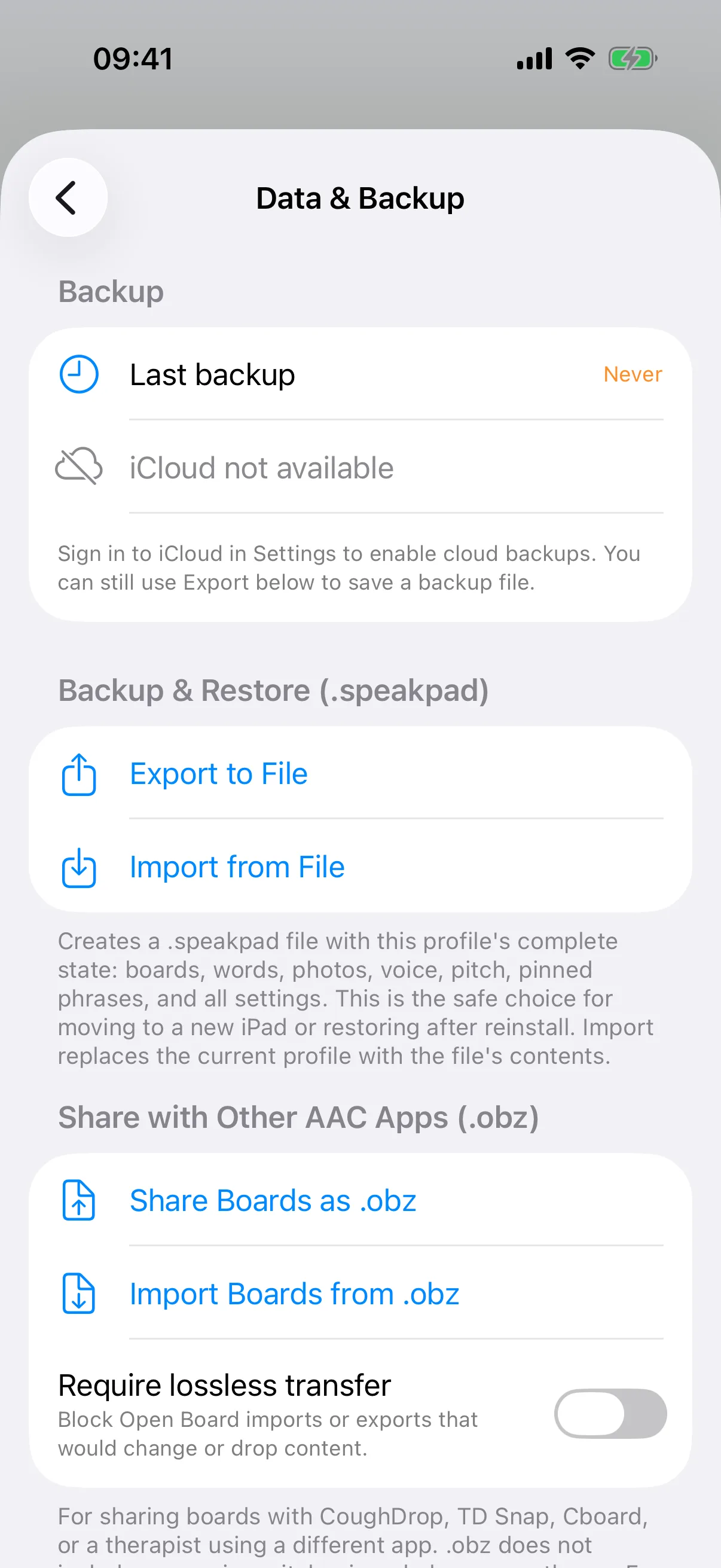
- Share a file: exporting and importing SpeakPad board files is free. Send a .speakpad board file through an agreed route such as AirDrop or Files. This suits occasional handovers and organizations that do not use iCloud.
- Update your own devices: Pro can apply newer boards across devices using the same iCloud account. Free manual backups and restores remain an option.
- Share with a team: in SpeakPad 3.0.1 or later, invite people using different Apple Accounts. Starting a share and publishing changes require Pro. Accepting invitations and applying offered updates are free.
File sharing does not set up ongoing updates. Same-account updates do not create a team across separate accounts. Agree which route everyone is using.
Set up a team deliberately
In Caregiver Mode, open Settings → Data & Backup and use Share With the Team. Invite only the intended family members or professionals, with agreement about what will be shared. Each person uses their own Apple Account; nobody needs another person's account password.
Opening an invitation asks for the parental gate before the share details appear. Accepting adds a new communicator profile, rather than connecting the invitation to an existing local profile. Check the profile name before starting work.
Know what travels and what stays local
Team snapshots include boards, phrases, photos, recordings, goals, reviewed sessions and notes. Each device retains its own settings, including voice and access choices, and its raw usage history. Sharing boards therefore does not combine every device's tap history into one record.
iCloud must be available and permitted. A managed-device rule that disables iCloud also blocks team sharing. Follow the school's or service's approved transfer process; see the IT deployment guide. A child's personal photos and staff notes deserve the same care as other records shared by the team.
Coordinate edits before applying an update
Changes are published when you leave Caregiver Mode. Recipients are offered a snapshot and choose when to apply it; this is not simultaneous editing. If a colleague's update is waiting, it must be applied before your own changes are published. Agree who is editing when, especially before a large vocabulary change.
Applying replaces local boards and updates or removes previously shared goals, sessions and notes to match the snapshot. Local edits to those shared records can be replaced. A safety backup provides Undo. Review any pending work first rather than assuming separate edits will merge. The backup guide explains recovery and transfer options.
Use a short handover checklist
- Identify: confirm the communicator, the device and the current board version or handover date.
- Describe: list new words, changed photos and any altered navigation. Say why each change was made.
- Preserve: check that familiar words remain in their expected positions and that home languages remain available.
- Protect: make a backup and confirm the recipient is authorized to receive the included photos and records.
- Apply and try: open the updated boards, speak a sample message and check the receiving device's voice and access settings.
- Demonstrate: show the adult one everyday example, such as finding help during play.
- Agree: name who will make the next edit and how the team will report a missing word or mistaken change.
Keep communication available during the handover
Choose a time when the device is not needed for a conversation. Keep a familiar printed communication board within reach, and avoid making access depend on finishing an update. After a transfer, ask partners whether words are findable in real activities. A consistent process should make the child's communication easier, not add another task for the child to pass.
Want a board that speaks?
Private, offline AAC for iPhone and iPad. Speaking is always free, with optional SpeakPad Pro tools for caregivers.
Download on the App Store