You don't need any AAC experience to start, or fluent Irish. Here's what the first week looks like with your child's board in Irish and the menus in English.
Day one: setup
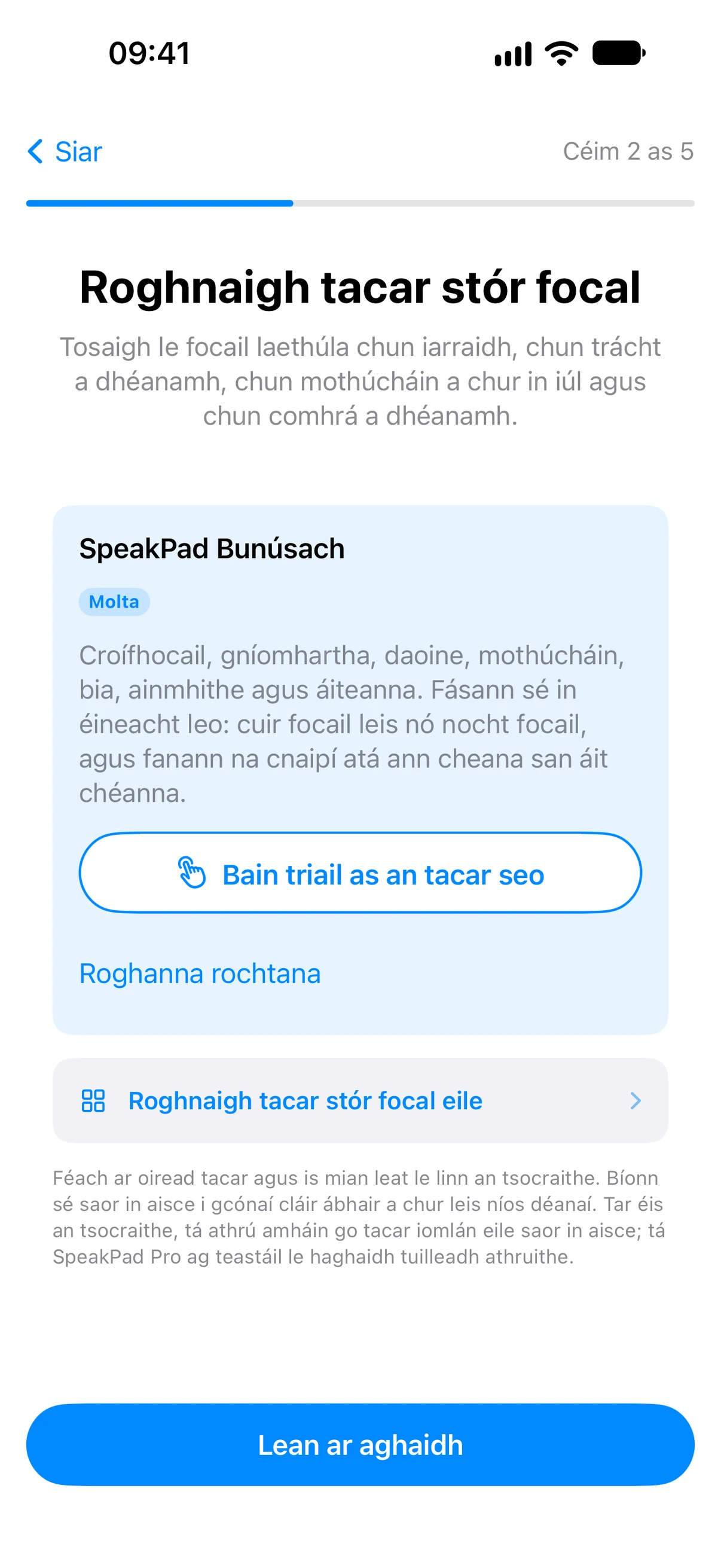
Install SpeakPad. If your iPhone or iPad is in English, setup opens on the Welcome screen: tap Language at the top left and choose Gaeilge. That sets your child's words and voice. The rest of setup continues in Irish, so keep tapping the blue button at the bottom; it covers a starting vocabulary set, your child's name, and a voice. At the end, a ready-made board with common vocabulary is waiting, no blank page to fill in. To read the menus in English, open Caregiver Mode (tap the gear and pass the parental gate), go to Socruithe → Cumarsáid → Teanga (Settings → Communication → Language) and set Roghchláir (Menus) to English; the board stays in Irish. If you want more later, such as words for mealtime or emotions, topic boards in caregiver settings add them without moving anything your child has learned.
What your child sees
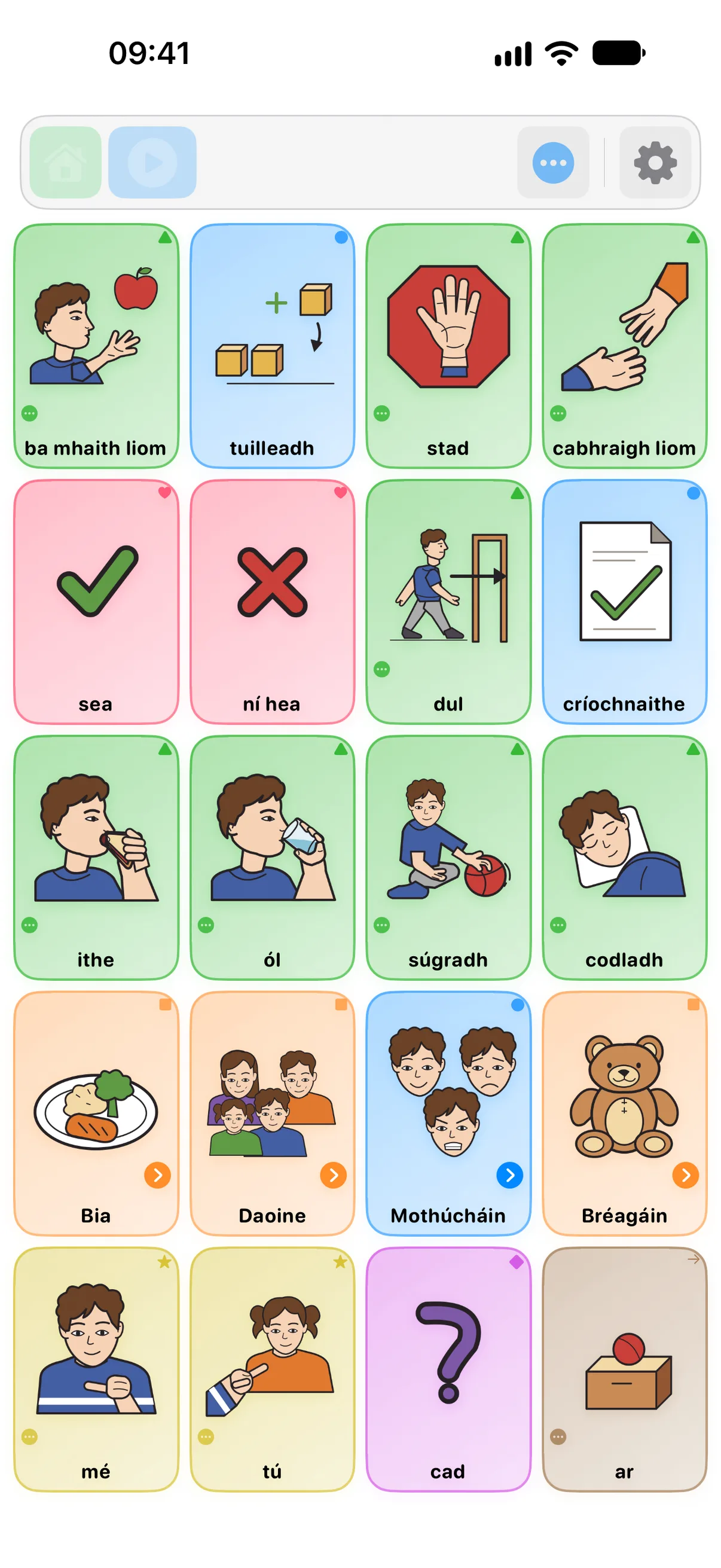
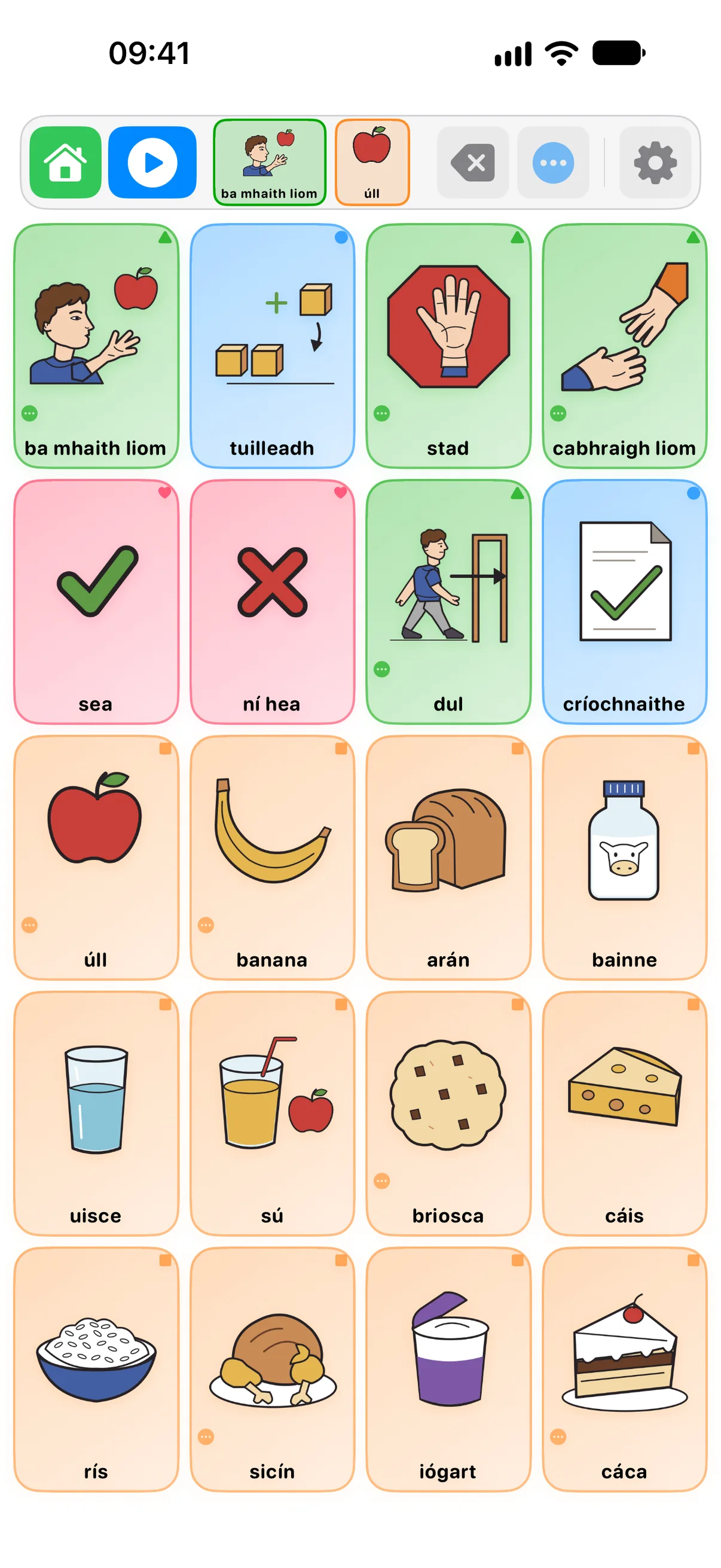
Your child gets one calm, uncluttered board. They tap picture symbols to build a message in the bar at the top, then tap Speak to hear it read aloud. Delete removes the last word; Clear starts over. The grid never rearranges itself: a word stays exactly where your child last found it, which is how the motor memory that makes AAC fast actually builds.
Colors aren't decoration. They follow the Fitzgerald Key used across speech therapy: green for actions, orange for things, blue for describing words, and so on, so the same color means the same part of speech everywhere in the app.
The one habit that matters most: model, don't test
The single biggest predictor of whether a child picks up AAC is whether the adults around them use it too, out loud, during ordinary moments. This is called aided language stimulation: you point at symbols on the board as you speak, the same way you'd narrate for a child learning to talk normally.
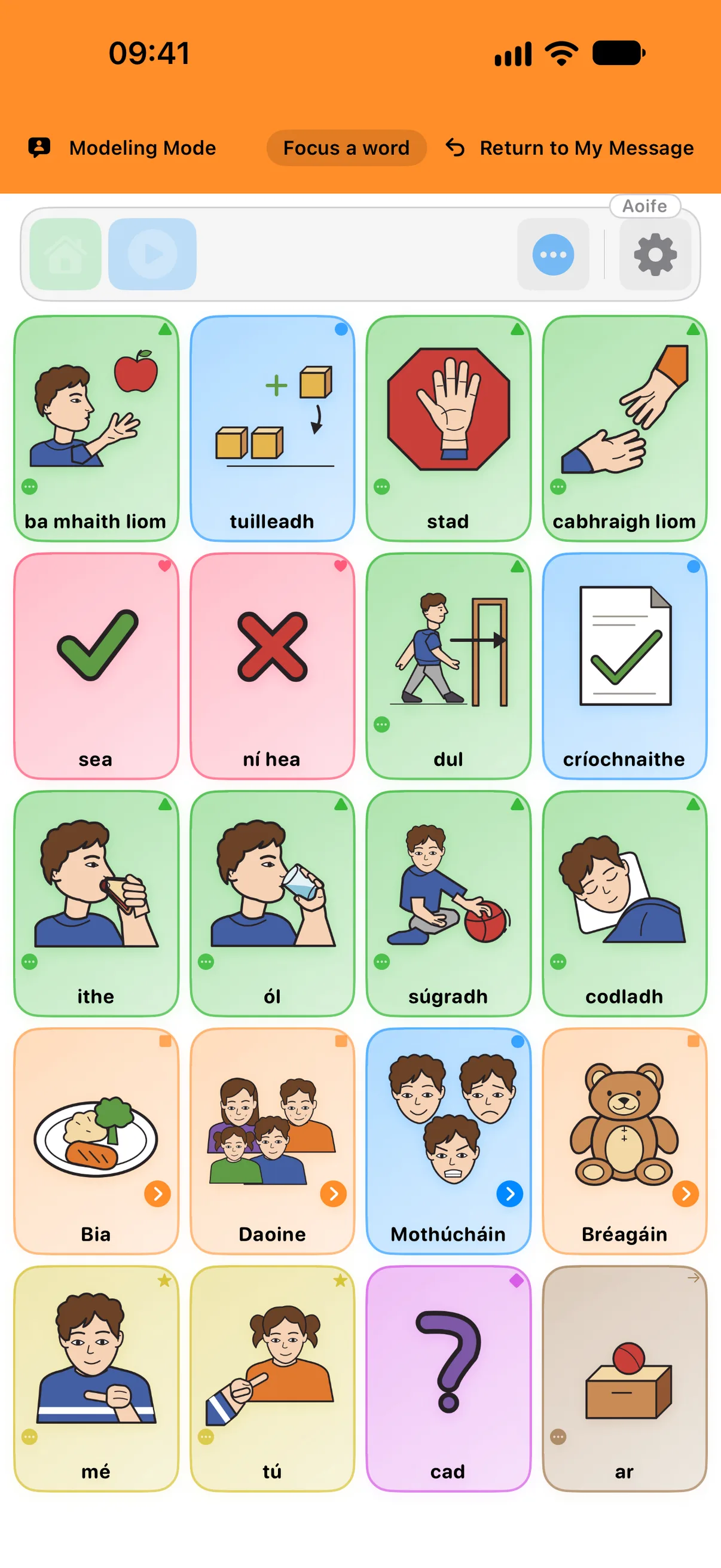
It doesn't need a dedicated session. Tap “more” as you hand them another cracker. Tap “all done” as you clear the plates. Tap “help” if they're stuck with a zip. You're not testing them or waiting for a response, you're showing them the board is a real way to talk, not a quiz. And when you want to show words without adding them to your child's own message, Modeling Mode keeps your taps separate.
Expect them to just watch at first, or to mash buttons out of curiosity. Both are normal parts of learning a new language, not a sign anything is wrong. There's no need to ask “what's this?” and wait for an answer; keep talking and modeling instead.
Their first sentence
A first sentence is often just two or three tapped words, not a full grammatical statement. If a stray tap or a sleeve clears the message, Undo in the message bar brings it back, so nothing is lost by exploring.
Making the board theirs
Within a few days you'll spot words your child needs that aren't on the board, and words they'll never touch. Tap the gear icon and pass the gate to open the board editor; these are the edits most families make in the first week:
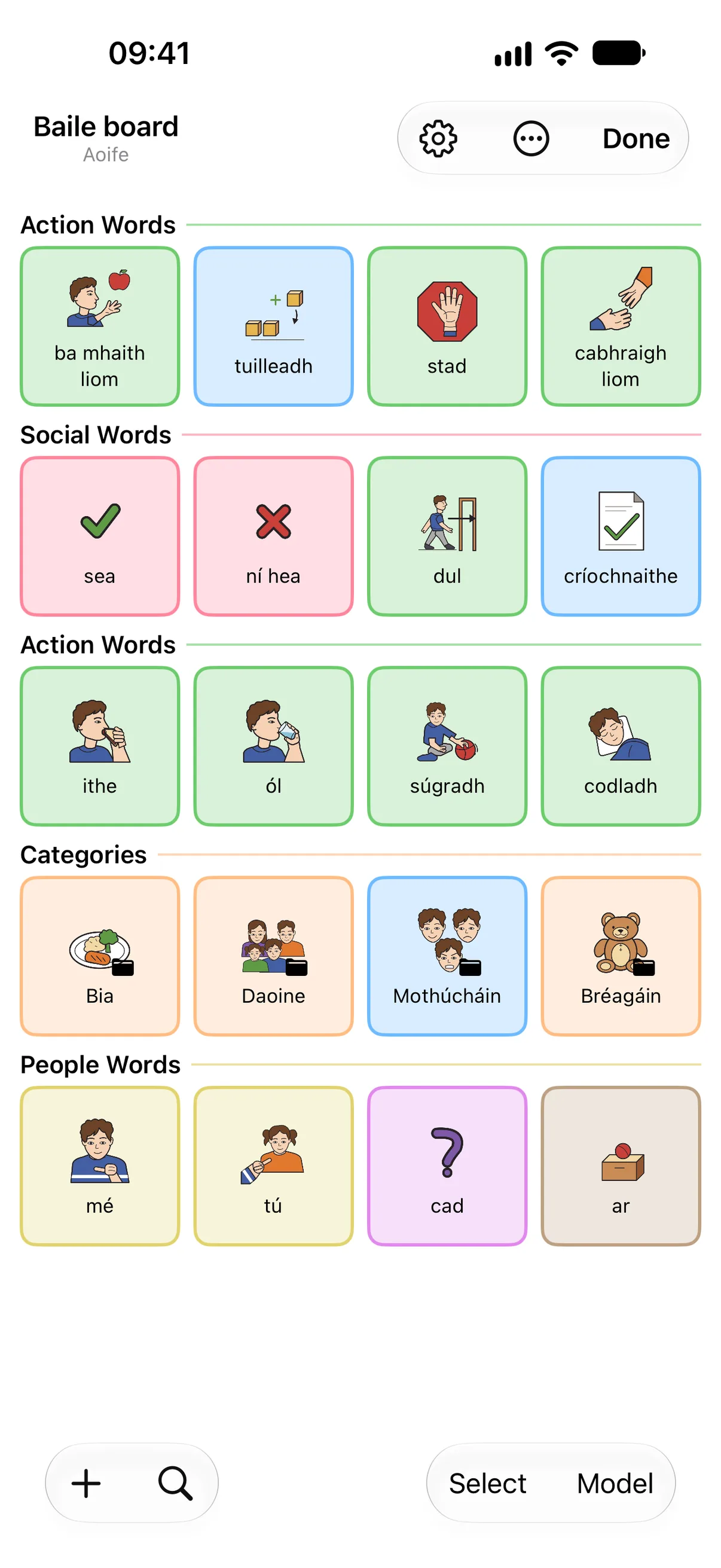
- Add a word: tap any empty cell, type the word, and pick a symbol. Searching all 26,000+ built-in symbols is free, and so is reusing any symbol already on your boards; every profile also gets 30 new assignments free, and Pro lets you assign any symbol beyond that
- Change or remove a word: tap it to edit the label, symbol, or color, or to delete it
- Use real photos: when choosing a symbol you can take or pick a photo instead (the actual dog, Nana, the exact snack); for people and favorites, nothing beats the real picture
- Hide rather than delete: every word has a hidden-from-child switch, so the board stays small without losing anything, and a hidden word comes back exactly where it was
- Resize the grid: More → Board Settings sets the rows and columns (sub-boards follow the home board, so tiles stay where muscle memory expects them)
- Add topics or change the set: open Settings → Boards & Vocabulary → Vocabulary Set. Topic boards such as Mealtime add words without moving anything; a complete set replaces every board, so SpeakPad previews the new home board and backs up your boards first. Your first set and one more change per profile are free. Further changes require Pro; your current boards remain usable.
- Check the everyday switches: in Settings, Speak on Tap and Show Keyboard Button are under Communication, and Show Core Zone is under Boards & Vocabulary. These are the settings families change most in the first week.
For activities away from the screen, our free printable AAC symbols include 48 pictures you can use in everyday routines and visual schedules. Keep your child's familiar symbols and full vocabulary available alongside them.
If something isn't working
No sound, can't find a word, or want to check a setting: the Support page covers troubleshooting and every caregiver tool in detail. For the caregiver side specifically, the next guide walks through the board editor.
Want the full tour?
The Editing Boards guide tours the tools behind the parental gate, from Visual Scenes to printing and Modeling Mode.
Next: Editing Boards