A First/Then board shows what is happening now and what comes next. A longer visual schedule shows a sequence. Either can give a child something to refer back to when spoken explanations are hard to keep track of.
Use these tools to make a plan understandable. Keep the child's communication system available throughout, including ways to ask questions, request help or say no.
Choose the kind of board you need
- First/Then: two activities, such as shoes and garden. Useful when the immediate next step is enough information.
- Visual schedule: several steps, such as arrive, put bag away, choose an activity and snack. Useful when seeing the wider sequence helps.
- Communication board: words for saying what you think or need. Help, different, stop and where are useful regardless of the schedule.
A schedule tells someone about a plan; a communication board lets them respond. One should not replace the other. The person may prefer photos, symbols, written words or real objects to explain a routine.
Start with a small, honest routine
Choose a routine you already share. For going outside, try First: shoes; Then: garden. Show both while briefly explaining the plan. The pictures should describe what will actually happen, not a reward the child must earn by speaking or complying.
If the child indicates that the shoes hurt, respond to that information. Help with the problem or change the plan. A completed sequence is not more important than comfort or communication. If the garden is unavailable, explain the change and update the board instead of leaving a promise you cannot keep.
Create the schedule in SpeakPad
In Caregiver Mode, tap Add, choose New Category and set Board Type to Schedule. To turn an existing board into a schedule, open its Board Settings and switch on Show as Schedule. Add a word or photo for each step using the usual board editor.
Arrange the steps in the intended order in the board editor, then preview the schedule. It uses the visible words as steps; hidden words are skipped. Start with just two steps if that is enough. Keep this as a separate routine board so you do not rearrange familiar communication words to make a timetable.
Use the controls to follow the real activity
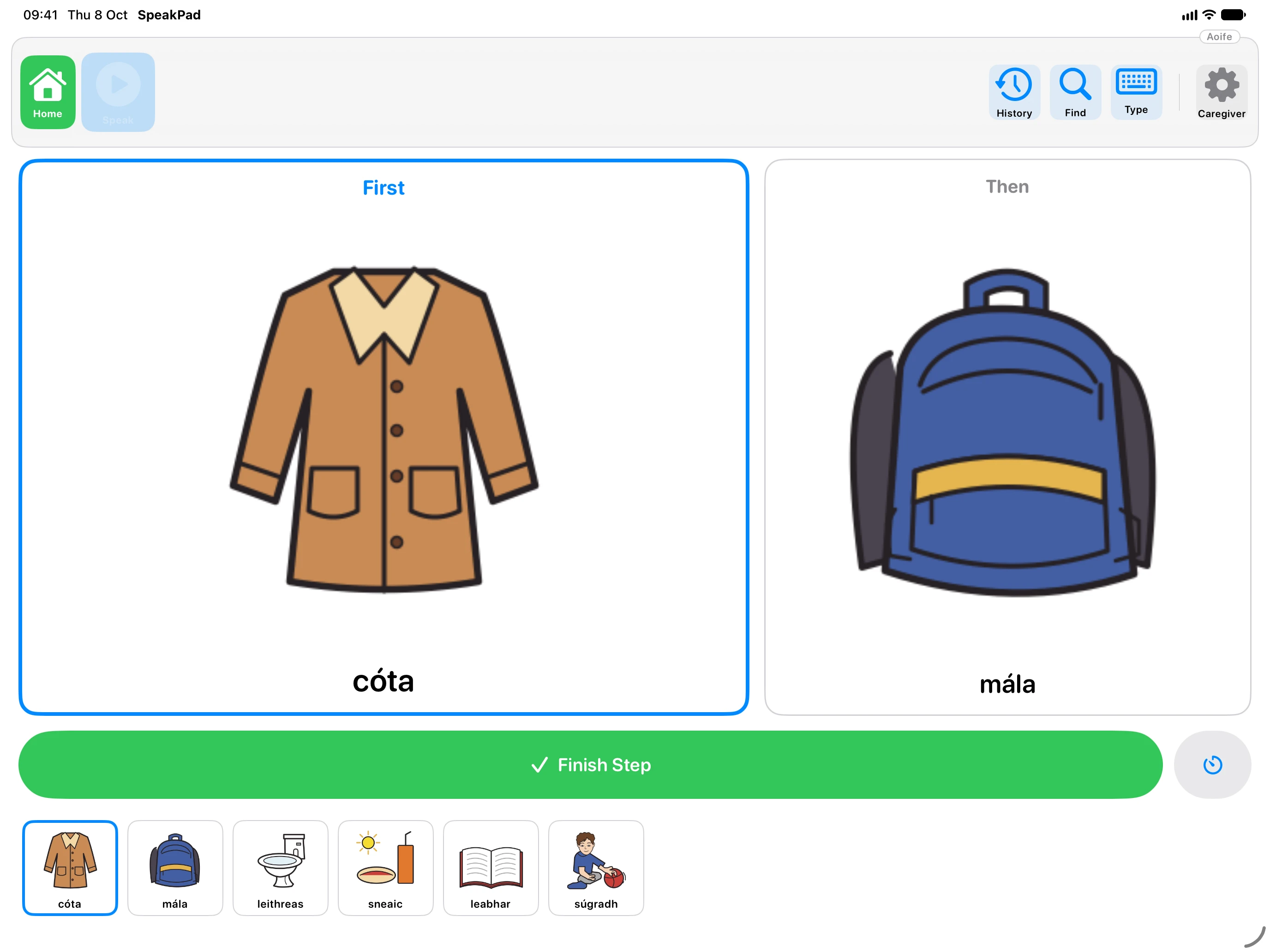
SpeakPad shows a large First card, a Then card and a strip of the steps. Tapping a step speaks its word. Finish Step moves the schedule forward. If you advance by mistake, tap the back arrow. When the routine is complete, Start Again lets you repeat it; progress also starts fresh on a new day.
Mark a step finished when it is actually finished. The control records where you are in the routine; it does not assess the child's independence or understanding. Talk through changes rather than silently moving ahead.
Use a timer only when it helps
The timer menu offers preset durations for the current step, with a visible countdown and a Stop Timer option. A countdown can be a useful reference for an activity with a real time limit. It is optional: leave it off if watching time feels uncomfortable or adds pressure.
Do not use the countdown to demand a word or remove access to AAC. Explain any genuine time limit and help the child communicate about it.
Keep choices and a paper option available
Include opportunities to choose, and make help, stop and different easy to reach on the communication board. A child can disagree with a plan using movement, facial expression, speech or AAC. Acknowledge the message even when a necessary part of the routine cannot change.
The printable First/Then board and visual schedule gives you a paper version, with 24 picture cards to cut out, for places where a screen is inconvenient. Use pictures that match the child's experience. For photographs and editing, follow the board-editing guide. Afterwards, review whether the sequence was accurate, the pictures made sense and the child could still say what they needed.
Want a board that speaks?
Private, offline AAC for iPhone and iPad. Speaking is always free, with optional SpeakPad Pro tools for caregivers.
Download on the App Store