The voice you pick becomes your child's voice, so it is worth ten minutes to find one they like and make it as clear as possible. Apple's voices and the voices that come with SpeakPad are free.
Where the Voice Settings Live
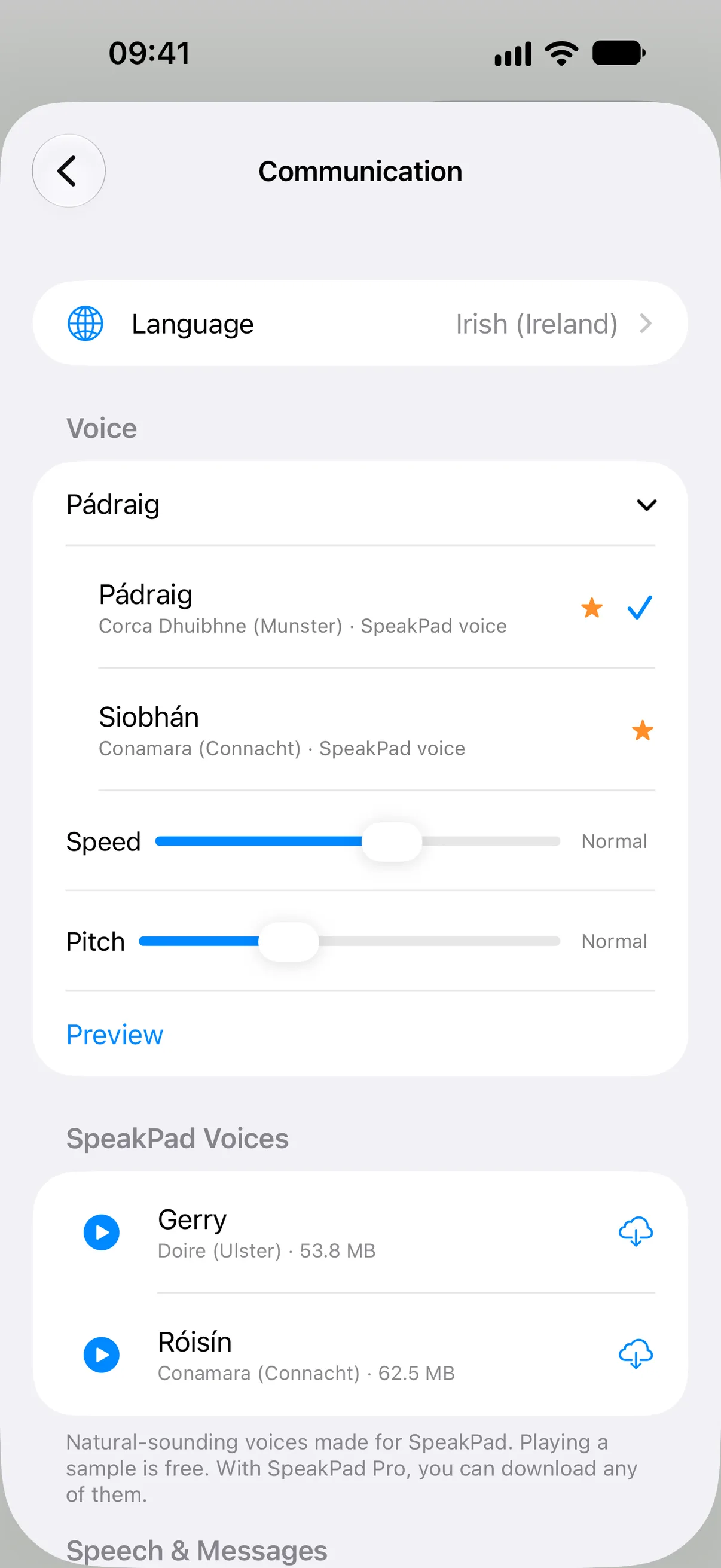
Enter Caregiver Mode and tap Settings (the gear at the top right), then Communication. In the Voice section, tap the current voice’s name to hear and compare every voice for your language. Each profile has its own voice, so two children sharing an iPad can each sound like themselves.
Download Better Voices for Free
Your device ships with compact voices, but much more natural versions are a free download away. Open the iPad or iPhone Settings app and go to Accessibility → Spoken Content → Voices, pick your language, and download an Enhanced or Premium version of any voice (they are larger files, so use Wi-Fi). Once downloaded, the new voice appears in SpeakPad's voice picker. If a voice shows a warning in SpeakPad that it is not downloaded, this same screen is where you fetch it. Irish is the exception: Apple has no Irish voice, so SpeakPad comes with two of its own, Pádraig and Siobhán, built into the app.
SpeakPad Voices with Pro
For English and Irish, SpeakPad Pro adds SpeakPad's natural-sounding voices, downloaded when you choose one: Benji, Emily, Hope, Jessie, John and Ryan for English, and Gerry and Róisín for Irish. They are listed under SpeakPad Voices in the same Voice section, and anyone can play a sample first. A SpeakPad voice knows every word that comes with SpeakPad. An English voice hands any other word, such as a name you typed, to an Apple voice in the same language, and an Irish voice spells it out, so try your child's own words before you switch.
Speed and Pitch
Just below the voice list are the Speed and Pitch sliders. A slightly slower rate gives many children more time to process what they hear, and pitch can make a voice feel more like their own. Small changes go a long way; adjust one thing at a time and listen together.
Fixing Pronunciations
Text-to-speech voices sometimes stumble on names, pet words, or local places. SpeakPad lets any button speak text that differs from its label: edit the item in Caregiver Mode and set the spoken text to a phonetic spelling. The button still reads Siobhán, but now it says it right.
Recording Your Own Voice
Any word can play a recording instead of the profile's voice. Edit the word in Caregiver Mode, tap Record My Voice, and say the word or a short phrase, up to 30 seconds. Once you save, that picture plays your recording in the primary language; every other word keeps the profile's voice.
If There Is No Sound
Check the silent switch and volume first; on iPads the mute control lives in Control Center. If a specific voice is silent or robotic, it may not be fully downloaded, so revisit Settings → Accessibility → Spoken Content → Voices. Speech in SpeakPad is generated on the device, so no internet connection is needed for it to speak.
Next: Two Languages on One Board
If your family speaks more than one language, SpeakPad can show both on every button and speak each one.
Bilingual Setup Guide