A grid works well for building sentences from scratch. A Visual Scene Display works differently: a real photo becomes the board itself, with hotspots your child taps directly on what they see.
What a Visual Scene Display is
Instead of symbols on a grid, a Visual Scene Display (VSD) uses a photo, a playground, a bedroom, a kitchen, and places tappable hotspots directly over things in the picture. Tapping a hotspot speaks its word or phrase, the same as any other tile.
Creating a scene
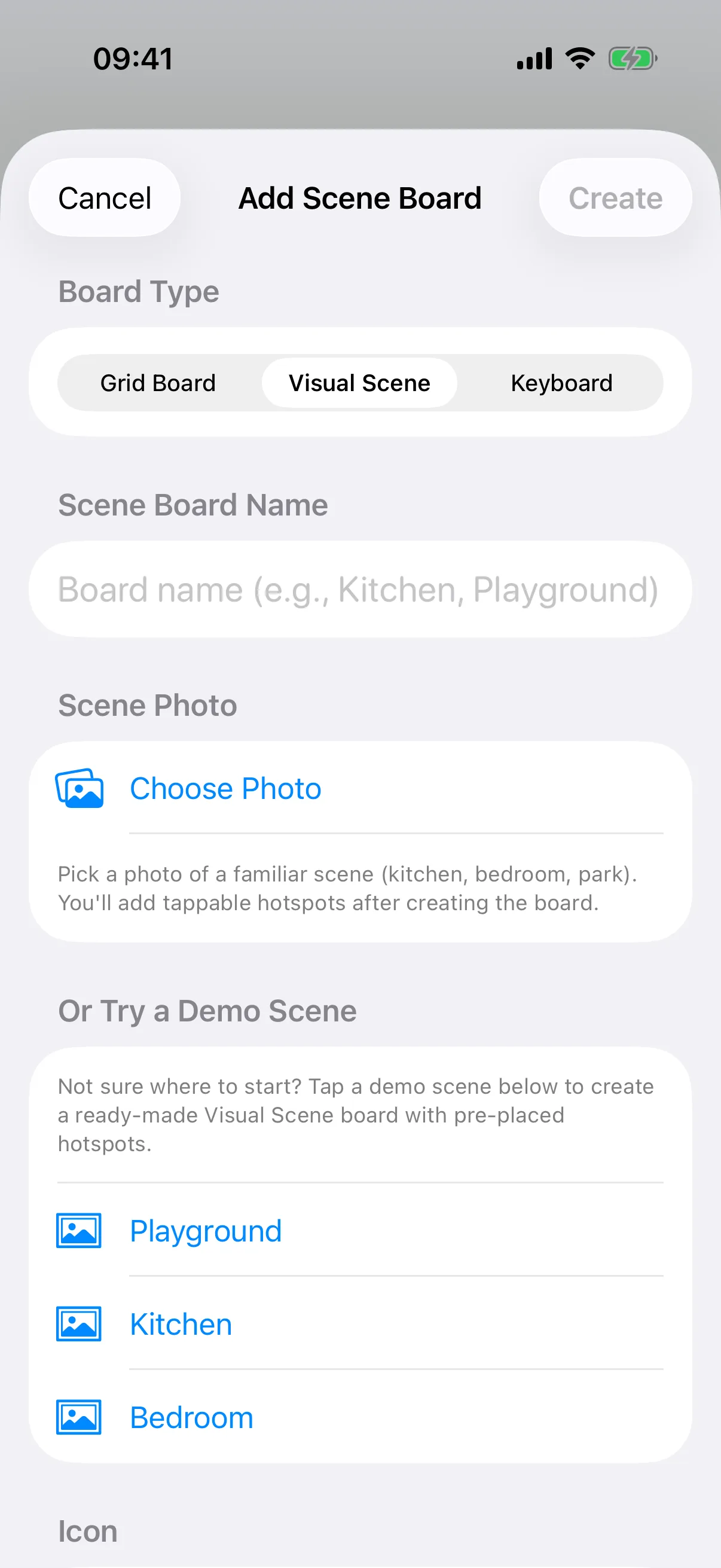
Use Add → New Category, choose Visual Scene, then pick a photo from your library. Not sure where to start? A handful of ready-made demo scenes, like a playground, are on the same screen and need no photo at all, useful for trying the feature before using a real one.
Adding hotspots
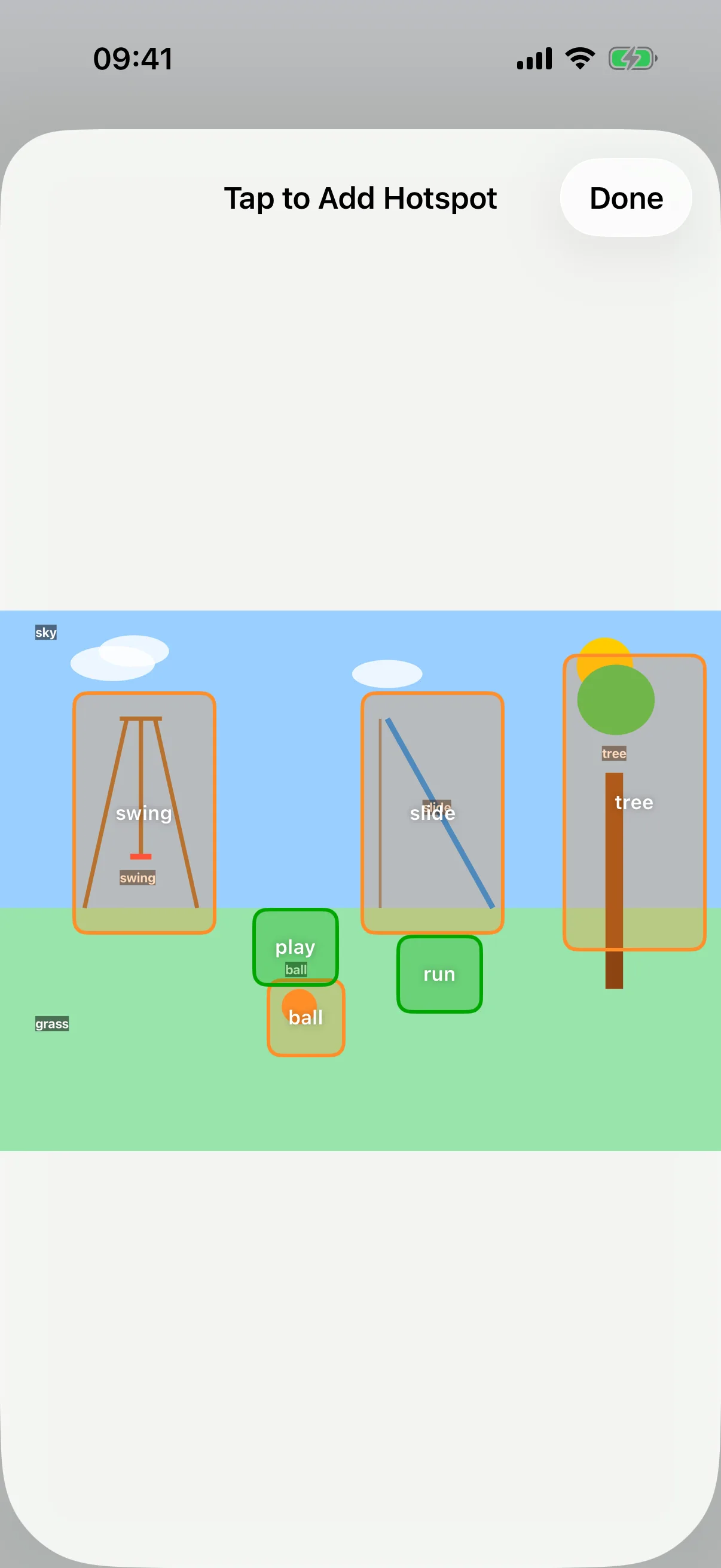
Create a scene from your own photo and the hotspot editor opens automatically: tap anywhere on the picture to place a tappable region, then set its label and the word or phrase it speaks. Demo scenes come with their hotspots already placed. Either way, reopen the editor any time with the Hotspots button in the bar along the bottom while viewing that board (it replaces Add, Find, and Select for Visual Scene boards).
When a scene works better than a grid
Scenes shine for a specific, familiar place, naming what's actually on the kitchen counter, or the swing and slide at the usual playground, rather than a general symbol for “kitchen” or “playground”. Grids stay better for building varied sentences; most children end up using both.
See it inside the board editor
The Editing Boards guide covers Visual Scenes alongside every other tool behind the parental gate.
Guide: Editing Boards