For a child who can't reliably tap the screen, Switch Scanning highlights cells automatically and waits for a single press to choose. Here's how to set it up.
Turning it on
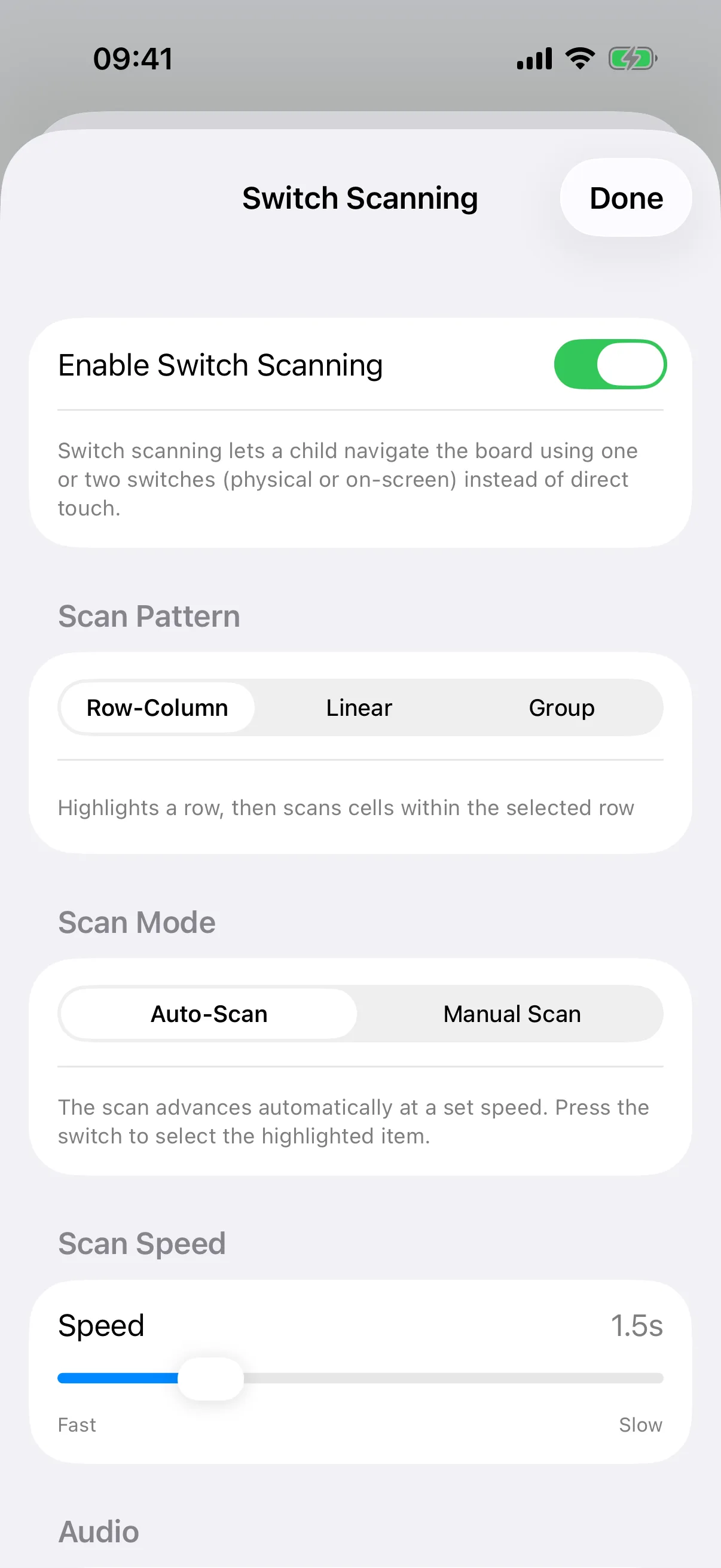
Open Settings → Accessibility → Switch Scanning and turn on Enable Switch Scanning. Back on the board, a large on-screen switch button sits at the bottom of the screen, so you can try everything before any physical hardware is involved.
Choosing a scan pattern
Row-Column highlights a row, then the cells inside it, the fastest option for larger grids. Linear scans cell by cell in order, simplest to learn. Group highlights groups of rows first, then narrows to a single cell, useful for very large boards.
Auto-Scan or Manual Scan
Auto-Scan moves the highlight on a timer; a switch press selects. In Manual Scan, press the primary switch to advance, then hold it or press a second switch to select. You can also set the highlight color and a sound for each scan step.
Using a physical switch
Pair a compatible switch in your iPhone or iPad’s Settings app. Direct scanning accepts keyboard-style inputs: Space, 1, Left or Up for the primary switch, and Enter, 2, Right or Down for the second. Compatible game controllers use A or Left/Up and B or Right/Down. Choose the matching mode on your switch. Not every Bluetooth or MFi switch exposes these inputs; other hardware may need iOS Switch Control. Physical AAC switch validation is still pending, so try the actual device and its press-and-hold behavior before relying on it.
Explore more caregiver tools
Everything else customizable in SpeakPad, from vocabulary sets to Modeling Mode, lives behind the same parental gate.
Guide: Editing Boards